Activating your FundCentre account and logging in for the first time
If you are a new user to FundCentre (Intralinks) and you have not previously activated an FundCentre (Intralinks) account, you will receive a welcome email message from Washington Capital Management (noreply-fundcentre@intralinks.com). The welcome email message includes your Username and a “Create Password” link. Clicking the “Create Password” link will begin the process for activating your account and includes steps for accepting the EULA, creating a password, and setting up multi-factor authentication to ensure your account is secure.
Multi-Factor Authentication (MFA)
FundCentre (Intralinks) requires MFA to verify your identity. With MFA, you provide two or more pieces of information (factors) to confirm that you are the legitimate owner of your account. With FundCentre (Intralinks), your password is one factor that is used to make sure that you are the person who is attempting to log into your account. A one-time passcode from an authenticator app or standard messaging service (SMS) is another factor that proves you are the rightful account owner.
You can use any supported authenticator app you like with Intralinks. Google, Microsoft, Okta and others have popular authenticator apps. You can also use the Intralinks Authenticator, which is part of the Intralinks mobile app. You can download the authenticator app to your mobile device. You also can opt to receive passcodes by text (SMS). SMS is a convenient but less secure option.
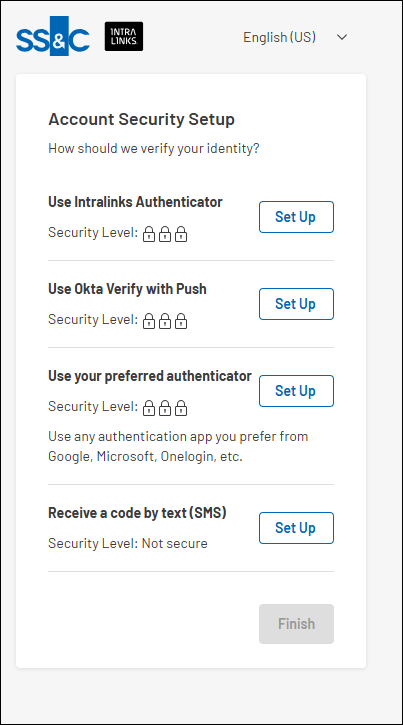
The first time you log into FundCentre (Intralinks), you will be asked to create a password and select a second authentication method.
MFA Options
Popular MFA Options
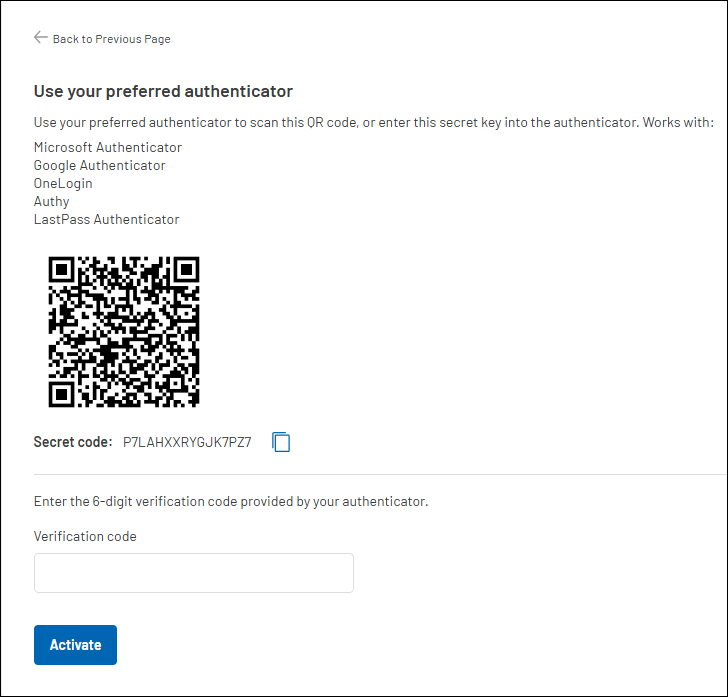
Using your preferred authenticator
To use your preferred authenticator app, select “Set Up” to the right of the “Use your preferred authenticator” option.
If you do not already have an authenticator app installed on your mobile device, download your preferred authenticator app from your mobile device app store. Popular authenticator apps include Microsoft Authenticator, Google Authenticator, Okta Authenticator, etc.
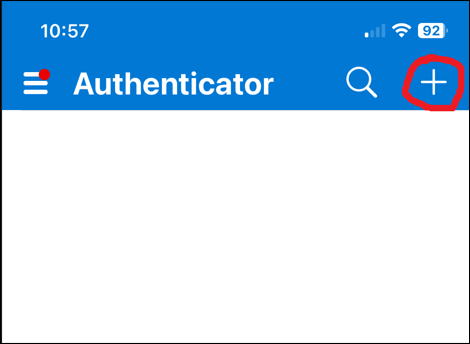
Microsoft Authenticator Example
Select the “Add New” Icon
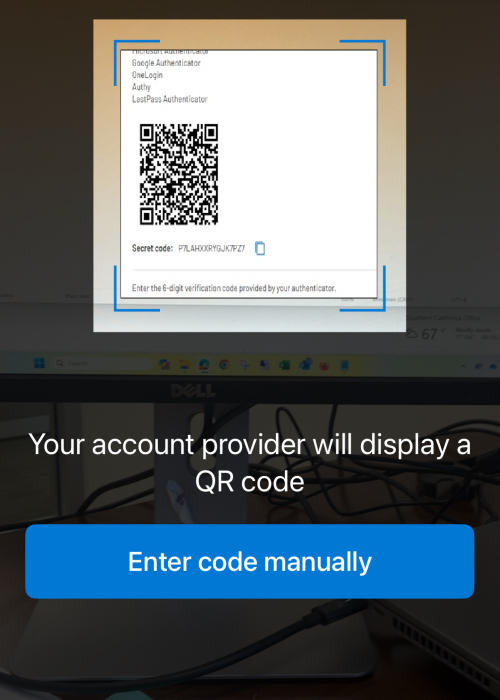
Scan the QR code from your authenticator app
Enter the Verification code from your authenticator app into the verification screen and then select “Activate”
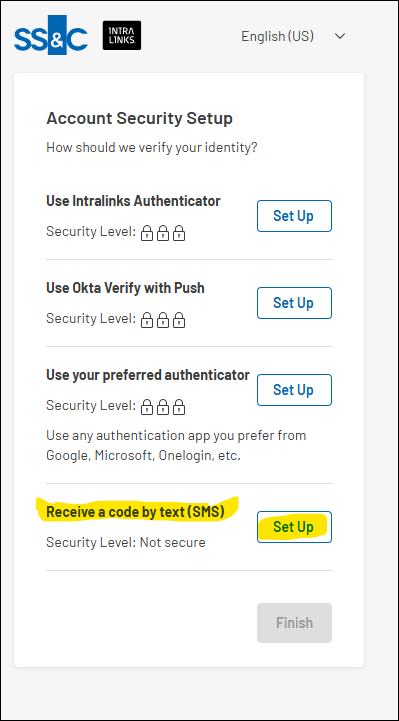
Receive a code by text (SMS)
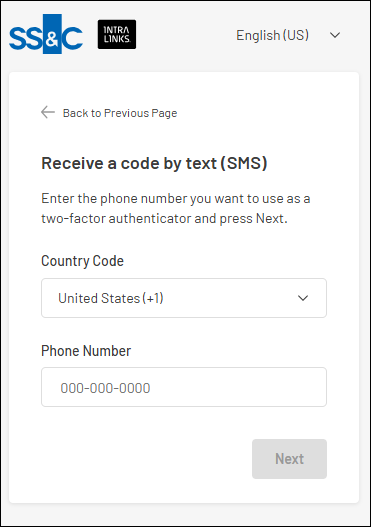
To text (SMS), select “Set Up” to the right of the “Receive a code by text (SMS)” option.
Enter your mobile telephone number in the space provided
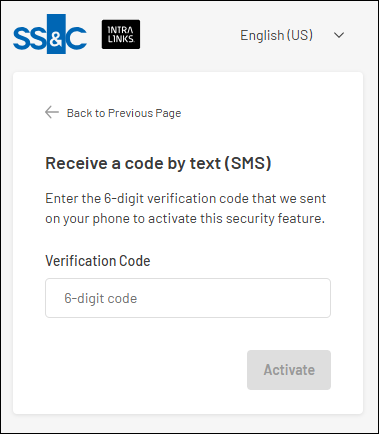
You will automatically receive a text (SMS) message with a verification code. Enter the verification code and select “Activate”.
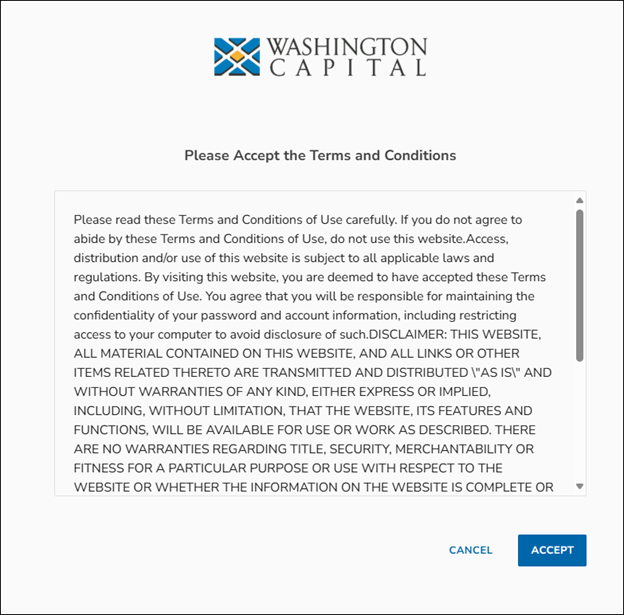
Accept Terms and Conditions
Questions?
Submit any issues, questions, and/or concerns via email to fundcentre-support@wa-cap.com. Please include your name, the reason for your inquiry, and the best way to contact you.